Bring your image
Drop in a JPG, PNG or WebP, paste an image, or start with one of our samples.
Your images, reimagined one little square at a time.
Make something wonderfully pixelated.
Your next little masterpiece
Drop an image here or choose a sample below.No complicated software.
Just you and a few good pixels.
Drop in a JPG, PNG or WebP, paste an image, or start with one of our samples.
Play with resolution and color. Add a touch of texture, or perfect a pixel by hand.
Download a crisp PNG at actual size or enlarged for sharing. No watermark, ever.
Practical settings, real comparisons, and a little help finding the look you want.
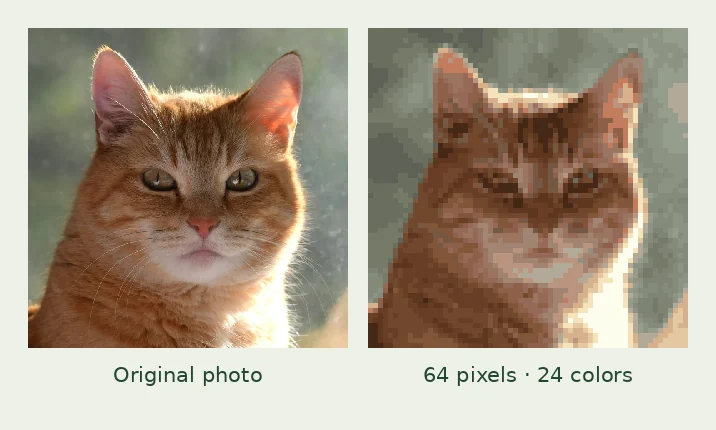
Turn a photo into pixel art with a repeatable workflow: choose a resolution, simplify colors, compare dithering, refine details, and export a crisp PNG.
Read the guide ↗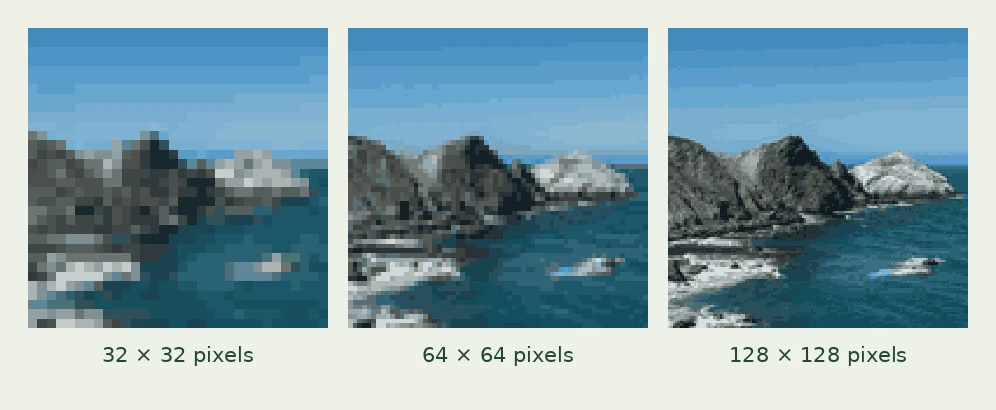
Choose a pixel art resolution by comparing 32, 64 and 128 pixels. Learn how image shape, detail and PNG enlargement affect the result, with a repeatable test.
Read the guide ↗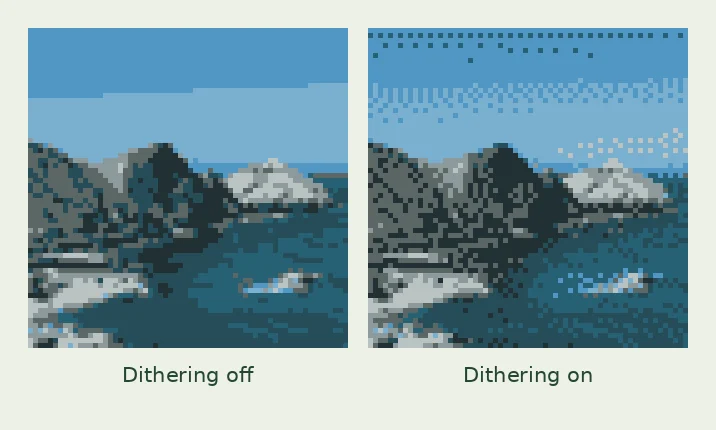
Compare dithering on and off for pixel art. Use a controlled photo example to judge gradients, texture and small details, then choose settings for your image.
Read the guide ↗Everything you need to know
before you go pixel-perfect.
Yes. Upload images, adjust your pixel art, edit individual pixels and download PNG files for free. No account is needed to use the converter.
It stays on your device. Conversion and export happen in your browser, and your uploaded image is never sent to a server. Refreshing the page clears your working image.
JPG, PNG and WebP images up to 20 MB are supported. For the clearest results, choose an image with a distinct subject, good contrast and a simple background.
Yes. Transparent areas in a PNG or WebP are preserved in your exported PNG. Pixelmint preserves existing transparency; it does not remove a solid background from a photo.
Try 32 pixels for a simple icon, 64 for a portrait, or 128 for a detailed scene. Actual-size PNGs are ideal for further pixel editing. Enlarged PNGs keep every square crisp for sharing and printing.
Choose the pencil under the preview, pick a brush color, then click or drag on your image. Use Undo or Ctrl/⌘ + Z to undo a stroke. Changing conversion settings regenerates the image and clears manual edits.