What the switch changes
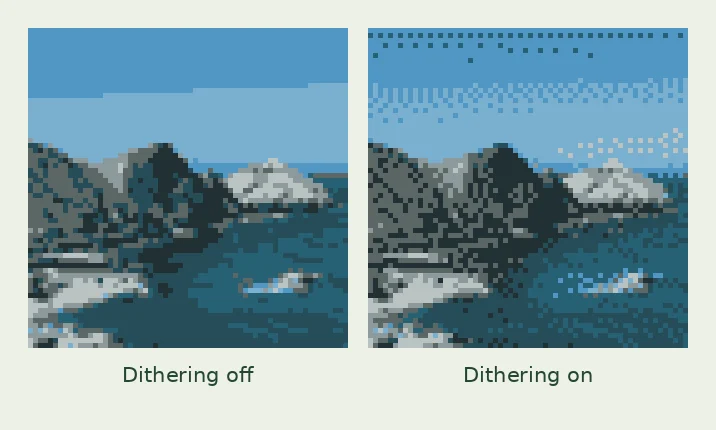
A limited palette cannot represent every shade in a photograph. With dithering off, each pixel is assigned a nearby available color. Smooth shading may become a set of flat patches. Dithering arranges available colors into a fine pattern that can suggest intermediate tones when you view the image at a suitable size.
Pixelmint uses Floyd–Steinberg dithering, which distributes color-matching error into neighboring pixels. It changes the arrangement of the palette colors, rather than adding new colors to the palette. The working grid also stays the same size. Texture and perceived shading change; the pixel count does not.
Make the first comparison controlled
Choose the Coastline sample in the converter. Set Pixel resolution to 64 px, select Original colors, set Number of colors to 8, and leave Contrast at 0. Start with Dithering off and download an 8× PNG. Turn Dithering on, keep every other setting unchanged, and download a second version.
The sample is square, so both files describe a 64 × 64 grid and both downloads are 512 × 512. This comparison isolates the dithering switch. Do not change resolution, palette or contrast between the two exports, because those adjustments would make the source of a difference harder to identify.
Inspect broad areas and small features separately
In the Coastline example, the undithered sky contains large flat color areas. Turning dithering on introduces visible dot patterns in the sky and water. Examine whether that texture makes the transitions more convincing at your intended viewing size. The switch does not guarantee an improvement, and a photograph can contain both areas that benefit and areas that do not.
Next, inspect the boundary between land and water. Does the extra pattern make that boundary less clear? Does it draw attention away from the image's main shapes? View the PNGs at the size where they will actually be used, as well as enlarged. A pattern that is subtle in a small image can become the dominant feature in a large one.
Check a second subject before choosing a habit
Repeat the same 64 px, Original colors, 8 colors, Contrast 0 test with Flower power. Compare Dithering off and on while looking at the flower's outline and the separation between its light and dark areas. This gives you a different subject to judge without changing the method.
For a logo, lettering or a drawing built from flat color areas, start with dithering off and inspect whether anything useful is missing. For a photo with gentle shading, test it on. Treat those as starting points. The switch should earn its place through a visible improvement, rather than become a setting you apply to every image.
Try more colors before accepting distracting texture
If the eight-color result feels too speckled, turn dithering off and compare a 16-color limit, then 24. Original colors allows limits from 4 to 64. A larger palette may represent the transition with less need for patterned mixing. Keep the resolution constant during this test.
If the overall silhouette is the problem, return to the resolution guide. Dithering cannot give a tiny feature more grid cells. If color treatment is the issue, compare Original colors with a fixed palette such as Golden hour; remember that choosing a fixed preset changes the available colors as well as the style.
Leave Contrast at 0 while diagnosing texture. Once you have chosen the palette and dithering state, make a small contrast adjustment only if it resolves a separate issue with light and dark separation.
Keep the useful version, then refine it
Choose the version that communicates the important shapes at the intended size. You can keep both exports when they serve different uses, such as a textured illustration and a simpler small avatar. Record the resolution, palette, color limit and dithering state in your own notes if you want to repeat the result later.
Finish these choices before using the pencil. Changing the dithering switch regenerates the image and clears manual pixel edits. Once the settings are settled, clean up distracting individual cells, then export at Actual size for further editing or an enlarged size for sharing. The complete workflow guide covers those final steps.
Common questions
Does dithering blur the image?
It changes the pattern of individual colors. The exported pixels keep hard boundaries; the appearance of blended shades depends on how you view the pattern.
Does dithering add more colors?
It uses colors from the selected palette. The pattern can suggest shades that are not individually present as palette entries.
Can I adjust dithering strength?
Pixelmint currently offers an on/off switch. To change the result further, compare palette size or resolution while adjusting one setting at a time.
Try it on your image
Use the sample settings first, then upload your own JPG, PNG or WebP. Your image is processed locally in your browser.
Try the dithering exampleFurther reading: GIMP 3.0 User Manual — Indexed mode. Example photos: photo credits.