1. Give your subject enough room
Choose an image whose main subject is recognizable without zooming in. A large face, one flower, or a simple object gives you a useful starting point. A distant person inside a busy scene has fewer pixels available for the features that make them recognizable. More source megapixels will not compensate for a subject that occupies a tiny part of the frame.
If the composition needs a tighter crop, do that in your usual photo editor before opening Pixelmint. Bring in a JPG, PNG or WebP file under 20 MB. Use a PNG or WebP with existing transparency when you want the finished artwork to keep a transparent background.
2. Make a first draft at 64 pixels
Open the converter, choose your image, and set Pixel resolution to 64 px. Choose Original colors, set Number of colors to 24, leave Dithering off, and keep Contrast at 0. These settings give you a baseline that is easy to compare with later changes.
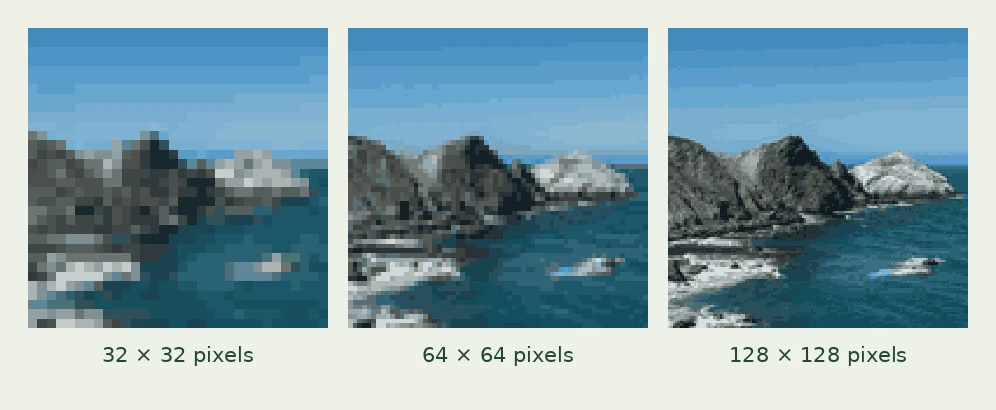
Pixel resolution sets the image's longest edge. A square source becomes 64 × 64; a landscape image twice as wide as it is tall becomes 64 × 32. Check the dimensions beneath the preview. If the subject loses an essential feature, try 128. If the result feels too detailed, try 32. Our resolution guide explains how to make that choice.
3. Simplify color, then compare texture
Keep the resolution steady while you test 16 colors against 24. Look at the subject's outline, the separation between foreground and background, and the lightest and darkest areas. Choose the smaller palette if it still communicates the features you care about. Original colors supports a limit from 4 to 64; the actual result may use fewer colors.
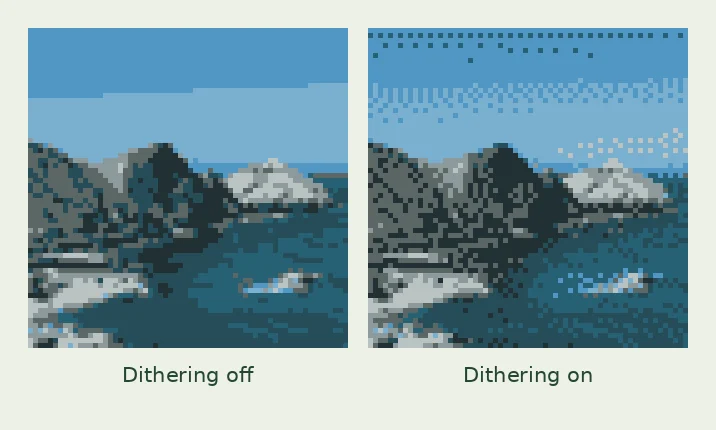
For a different color treatment, try Matcha, Golden hour, Ocean blue or Monochrome. Each uses a fixed eight-color palette. Then compare Dithering off and on. The patterned texture can help limited colors suggest intermediate shades, but it may distract from tiny details. Judge the result at the size you intend to show it.
Leave Contrast at 0 unless you can identify a specific problem. If light and dark areas merge together, try +5 or +10 and compare again. If pale highlights or dark shadows lose useful detail, return toward 0.
4. Follow a repeatable Cat nap example
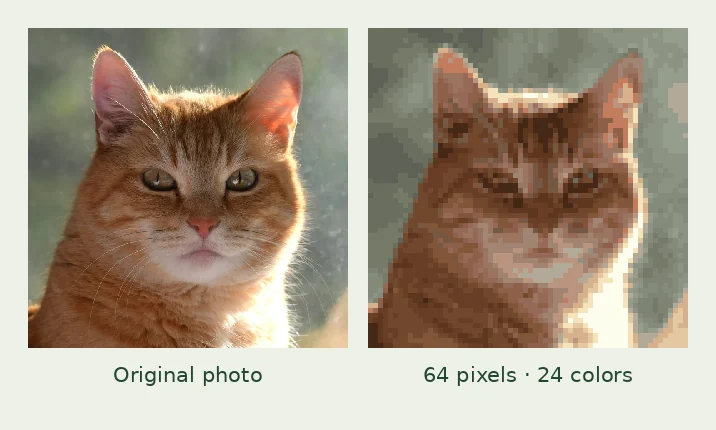
Choose the Cat nap sample and use 64 px, Original colors, 24 colors, Dithering off and Contrast 0. Because the sample is square, its working grid is 64 × 64. Use Original and Compare to inspect the source alongside the conversion.
Check whether the cat's face remains recognizable and whether neighboring areas are clearly separated. Change only the color limit to 16, then compare again. Keep the version that communicates the subject with fewer distracting patches. This is a practical comparison you can repeat; it does not require matching someone else's preferred style.
5. Refine individual pixels last
Settle the resolution, palette, dithering and contrast before using the pencil. Changing a conversion setting rebuilds the image and clears manual edits. Once those choices are stable, select a palette swatch or a brush color, enable the pencil, and click or drag to paint.
Work on a specific issue, such as an isolated dot on an edge or a small feature that needs clearer separation. Turn on the grid if it helps you target a cell. Use Undo or Ctrl/⌘ + Z to reverse a stroke. The grid is only a viewing aid and is excluded from the exported PNG.
6. Export a working copy and a sharing copy
Choose Actual size to save the underlying pixel grid. For the 64 × 64 sample, choose 8× enlarged to save a 512 × 512 PNG for sharing. Enlarging makes each existing pixel a bigger square; it does not add new drawing detail. Pixelmint preserves hard pixel boundaries during export.
Keep the actual-size file if you plan to continue editing elsewhere. Download your finished result before refreshing the page, because the working image is cleared on refresh. Conversion and export happen in your browser, and your selected image is not uploaded to a server.
Common questions
Can Pixelmint remove the photo's background?
It preserves transparency that already exists in a PNG or WebP. To remove an opaque background, prepare a transparent source image in another editor first.
Why does my result still look photographic?
Try a smaller resolution or fewer colors, then inspect the subject's outline. Automatic conversion reduces detail and color; deliberate pixel edits can help clarify the shapes you want to emphasize.
Does a larger download improve detail?
It makes the same pixel grid larger. To retain more source detail, change Pixel resolution before making final manual edits.
Try it on your image
Use the sample settings first, then upload your own JPG, PNG or WebP. Your image is processed locally in your browser.
Try this 64-pixel setupFurther reading: GIMP 3.0 User Manual — Indexed mode · MDN — CanvasRenderingContext2D.imageSmoothingEnabled. Example photos: photo credits.