Understand the working grid first
A 32 × 32 image has 1,024 cells. A 64 × 64 image has 4,096, and a 128 × 128 image has 16,384. Doubling both dimensions gives you four times as many cells. That extra space can describe smaller features, but it also leaves more room for background detail and texture.
In Pixelmint, Pixel resolution sets the longest edge, with a range of 16 to 256 pixels. The original proportions stay intact. A square image at 64 becomes 64 × 64; a picture twice as wide as it is tall becomes 64 × 32. The displayed dimensions beneath the preview are the reliable description of your actual grid.
What to look for at 32, 64 and 128
Try 32 when you want a compact image built from broad shapes. Ask whether the silhouette and one or two defining features survive. A tiny accessory, thin line or subtle expression may disappear. If the subject still reads clearly, those omissions may help the image feel simpler and more deliberate.
Use 64 as a balanced first experiment for a single subject. It gives you more room to separate nearby features while keeping individual pixels visually prominent when enlarged. Check whether the extra cells solve a real problem you saw at 32, such as two features merging or a diagonal becoming hard to follow.
Try 128 when several objects, fine outlines or a recognizable setting are essential to the picture. Inspect the background as carefully as the subject. If the higher resolution mainly preserves clutter, a tighter source composition may help more than another increase in grid size.
Run a fair comparison with Coastline
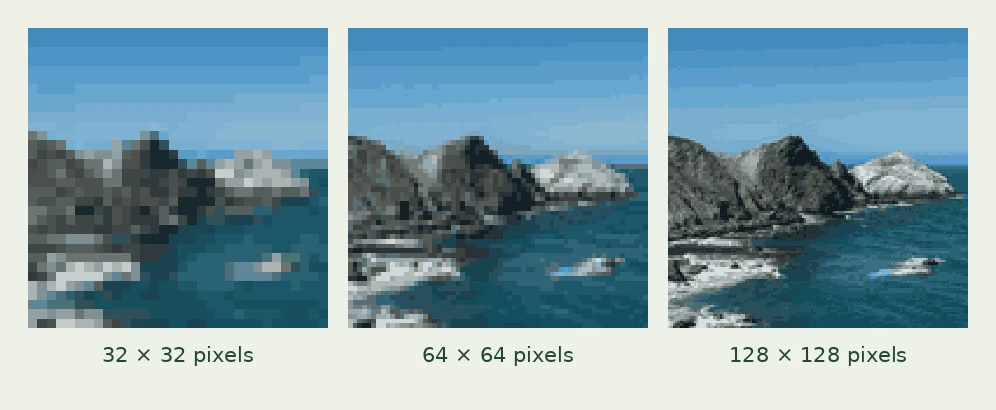
Open the converter and select Coastline. Choose Original colors, set Number of colors to 24, leave Dithering off, and keep Contrast at 0. Make versions at 32, 64 and 128 pixels while leaving those other controls unchanged.
For an equal-size comparison, download the 32-pixel version at 16×, the 64-pixel version at 8×, and the 128-pixel version at 4×. All three square PNGs will be 512 × 512. The example on this page also presents the three working grids at equal display sizes.
In the example, the large rock formations remain recognizable at 32, while 128 preserves finer changes along the shore and water. Decide which details matter for your intended use. View the images at that final size too: a feature visible in a large comparison may disappear in a small avatar.
Original colors builds its palette from the sampled image. Keeping the limit at 24 controls the number of available colors, but the specific color values can change with resolution. This is a comparison of the complete conversion at each grid size.
Separate resolution from PNG enlargement
A 64 × 64 image exported at 8× becomes a 512 × 512 PNG. Every working pixel occupies an 8 × 8 block in the downloaded file. The drawing still has the same 4,096 underlying cells. A 128 × 128 image exported at 4× reaches the same file dimensions with four times as many drawing cells.
Use Actual size when a later editor needs the original grid. Choose 4×, 8× or 16× when you want a larger image with clearly defined squares. Pixelmint enlarges without smoothing the boundaries. If another app resizes the exported PNG, choose nearest-neighbor or an equivalent pixel-preserving option when available.
Account for shape and composition
Selecting 64 does not make a rectangular source square. If you need an exact 64 × 64 asset, crop the source to a square in another editor first. Pixelmint preserves proportions and does not include a cropping control. For a rectangular target, prepare the matching proportions before conversion.
A subject covering half the image's width has roughly half that width's cells available to describe it. Before increasing resolution, check whether empty space or an unimportant background is using the grid you need for the subject. Cropping can change the result more substantially than moving from one preset to the next.
Choose the grid before polishing
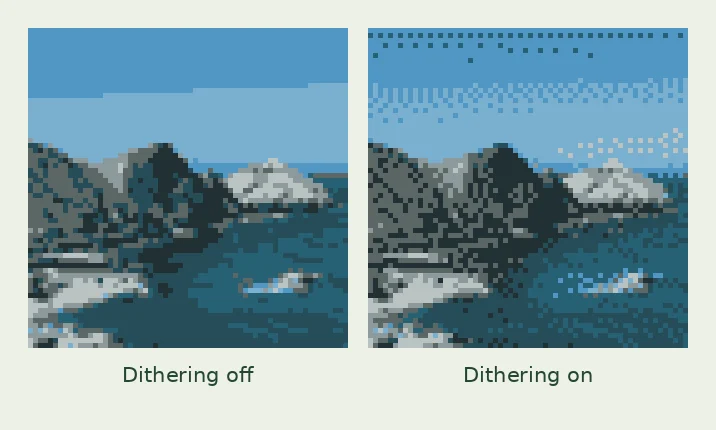
Once a resolution preserves the important shapes, keep it fixed while choosing colors and testing texture. If a smooth area looks patchy, compare palette size and dithering before assuming you need more pixels. Our dithering guide shows how to test that separately.
Leave individual pixel edits until these conversion choices are settled. Changing resolution rebuilds the result and clears hand-painted changes. For the complete order of operations, follow the image-to-pixel-art walkthrough, then return to the converter with your chosen grid.
Logical pixels and download dimensions
| Square pixel grid | 4× PNG | 8× PNG | 16× PNG |
|---|---|---|---|
| 32 × 32 | 128 × 128 | 256 × 256 | 512 × 512 |
| 64 × 64 | 256 × 256 | 512 × 512 | 1024 × 1024 |
| 128 × 128 | 512 × 512 | 1024 × 1024 | 2048 × 2048 |
These dimensions assume a square source. Pixelmint preserves the aspect ratio of rectangular images.
Common questions
Is 128 pixels always better than 32?
It retains more detail. Choose it when that detail serves your image; choose a smaller grid when clear, simple shapes are the goal.
Can I make 32-pixel art large enough to share?
Yes. A square 32 × 32 image exported at 16× becomes a crisp 512 × 512 PNG.
Why is my 64-pixel result not square?
The setting controls the longest edge. Pixelmint preserves your source proportions, so a rectangular image produces a rectangular grid.
Try it on your image
Use the sample settings first, then upload your own JPG, PNG or WebP. Your image is processed locally in your browser.
Compare sizes in the studioFurther reading: MDN — CanvasRenderingContext2D.imageSmoothingEnabled. Example photos: photo credits.